
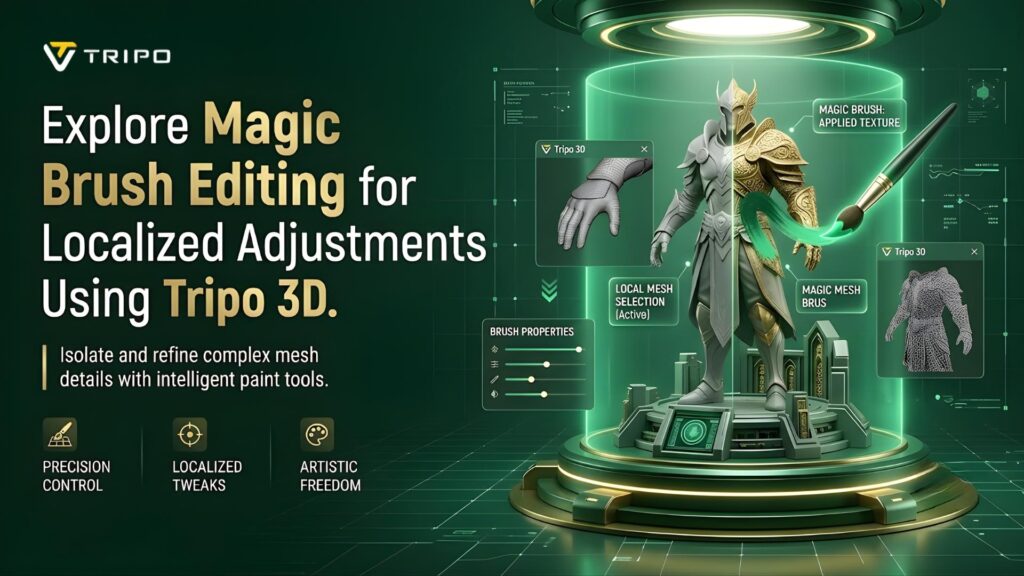
Localized editing has become an integral part of the 3D production pipeline in today’s world. Artists frequently require exact changes, but don’t want to modify entire assets. One solution to this challenge available in Tripo 3D is Magic Brush technology. This clever feature enables you to control the texture in a particular region finely. Creative control and a reduction in unnecessary revisions are achieved through selective editing. AI texturing is an ever-changing field, and the ability to refine texturing quickly and accurately continues to grow.
What Is Magic Brush Editing?
Magic Brush Editing is an AI-powered feature that allows you to edit certain parts of the model. It is applied to specific parts of a texture map and not the entire map, which means that it can be used without replacing the entire texture map. This provides targeted visual enhancement without altering existing image details. Tripo 3D applies adjustments that appear natural through contextual understanding. On-location editing enhances creative accuracy and reduces unwanted changes. It offers more precise control over surfaces and materials than global editing methods. This workflow supports both technical corrections and artistic enhancements, allowing creators to refine their 3D assets with greater control and flexibility.
How Magic Brush Works Within Tripo 3D
Magic Brush identifies the selected surface area and analyzes nearby textures. The system then makes AI-enhanced adjustments to the target area. The surrounding areas remain consistent throughout the editing process. Tripo 3D preserves the shape of the models and updates the appearance of the surface. This feature allows artists to adjust details without rebuilding meshes. Its texture awareness supports smooth transitions between edited and untouched areas. This level of precision helps make AI 3d model generator workflows more efficient, flexible, and easier to customize.
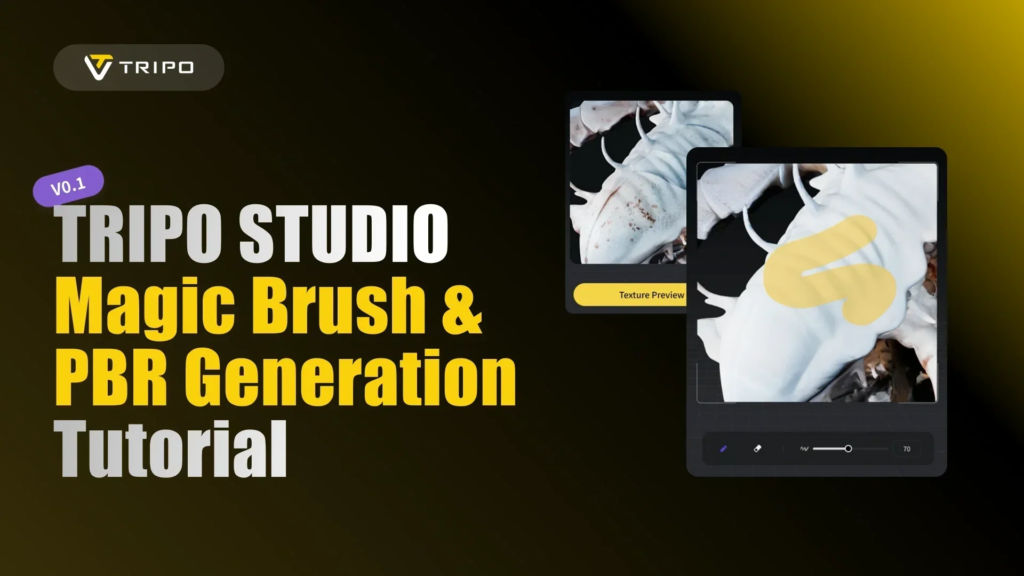
Advantages of Localized AI Editing
Localized AI editing provides significant advantages during the 3D asset creation process. Artists gain greater control when refining and making visual changes. Faster iterations can improve project efficiency and workflow speed. Designers can make changes to specific problems without creating new models. This targeted approach allows creators to test and refine changes based on creative needs. Tripo image to 3d supports visual quality and assists with complex editing tasks. These benefits are particularly useful when transitioning from image-based content into 3D generation workflows.
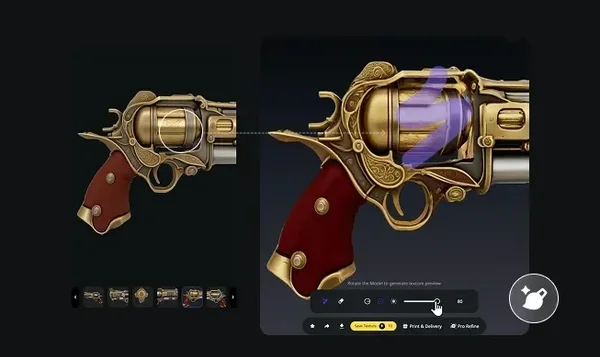
Steps to Harness Magic brush editing for localized adjustments using an AI 3d model generator
Step 1: Upload content for targeted edits
-
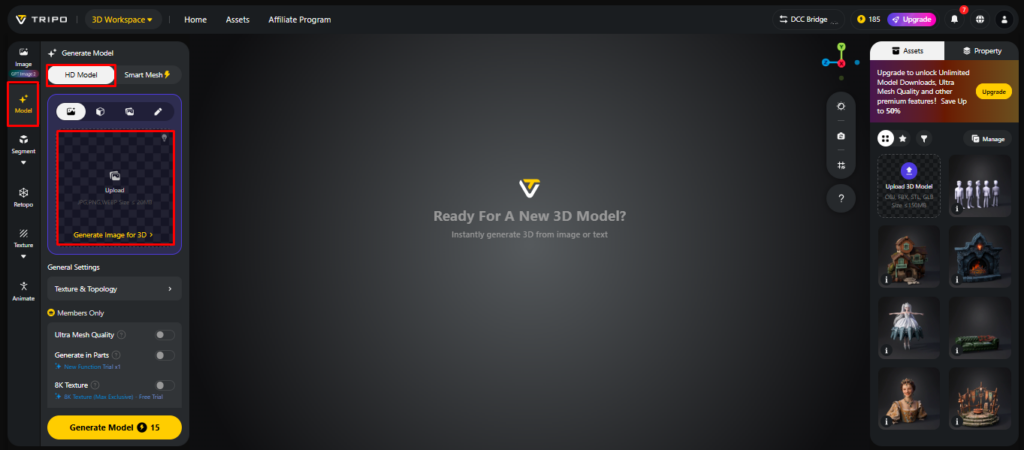
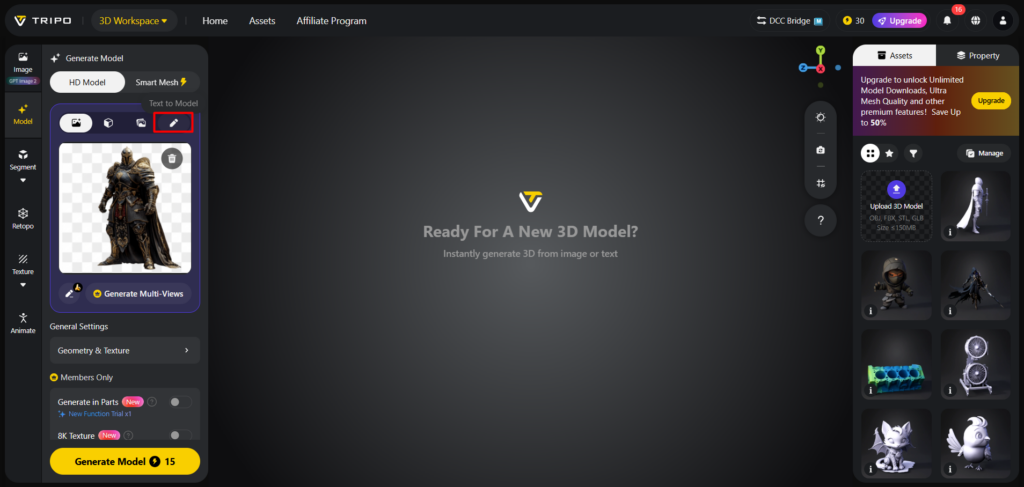
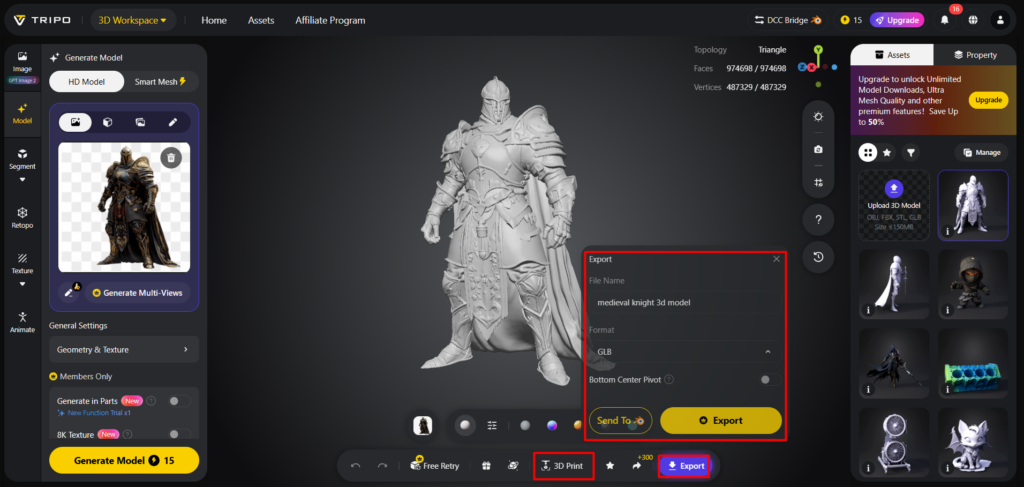
First, you need to access Tripo 3D and signup. Next, go to the “Model” tab present in the vertical left menu bar.
-
Under the menu, click on the “HD Model”. You can create models from text prompts or image uploads before applying localized adjustments.
-
You can drag and drop files or upload them from your device using the “Upload” tab.
-
If you do not have an image, click on the “Text to model” tab and enter a descriptive prompt.
Step 2: Customize model settings and generate
-
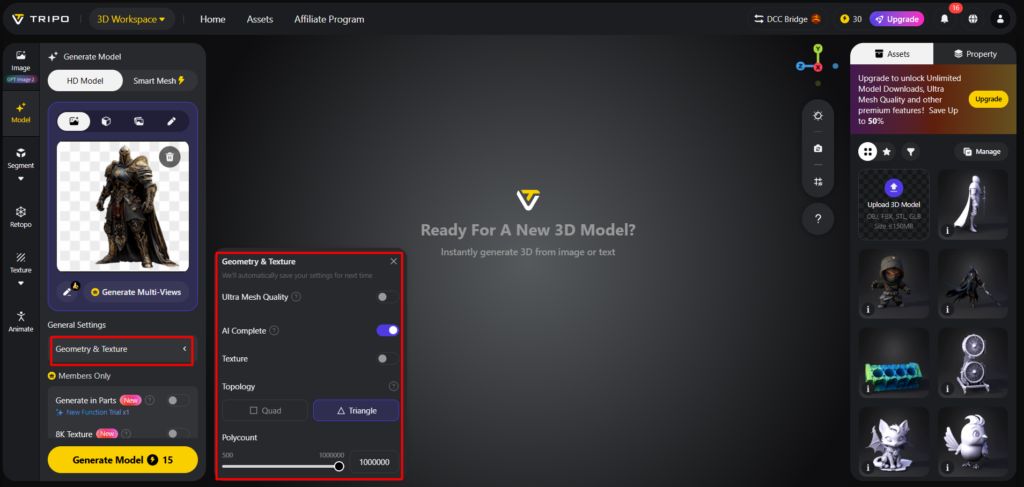
Under the “General settings” tab, enable “AI complete” for automatic generation. You can also switch on texture and select “Texture Quality” settings such as 2K, 4K, or 8K.
-
You can also turn on “PBR” for realistic material effects.
-
Select either “Quad” or “Triangle” topology for better mesh quality.
-
You can also set the custom polycount.
-
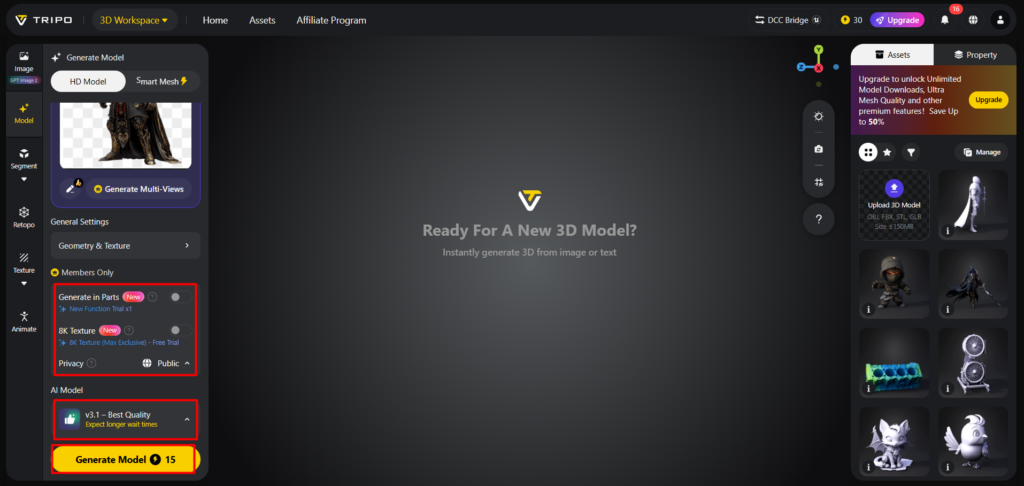
Later choose the model from the list, including v3.1 best quality, v3.0 fast and balanced, or v2.5 legacy.
-
If you are a member, then you can choose “Generate in Parts”, “8K Texture”, and “Privacy” options.
-
Finally, click on “Generate Model” to begin generation.
Step 3: Apply Magic Brush edits and export
-
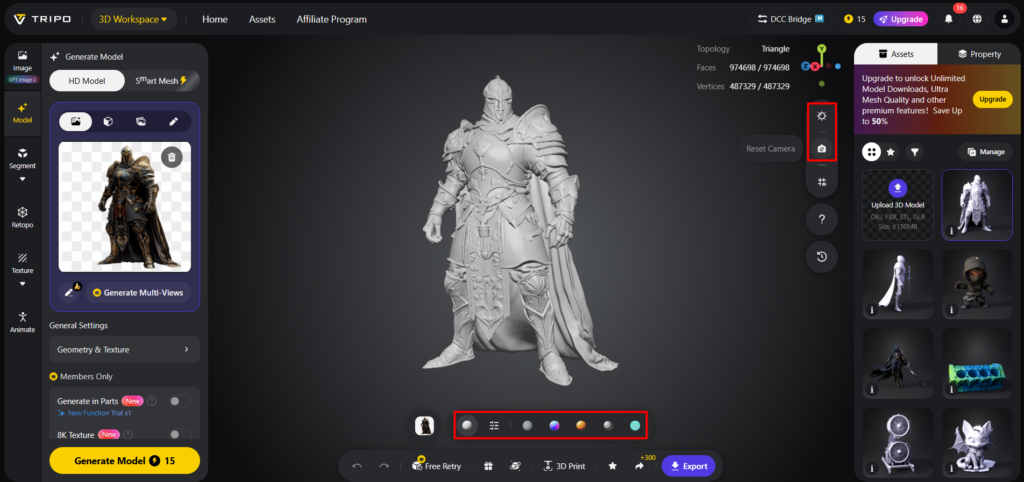
Tripo 3D allows viewing your work using “Solid View”, “Cartoon Style”, “Sketch Style”, “Hologram Style”, and “Unlit” form. You can also use “Refine” from the bottom menu to enhance selected regions.
-
You can also edit the “Environment Settings” and camera controls through “Reset Camera”.
-
If required, you can 3D print the design or share it directly by clicking “3D Print”.
-
In the end, click on the “Export” tab from the bottom menu. Next, choose the resolution, format, and file name, and click again on “Export” to save the design to your local device.
Types of Adjustments Possible with Magic Brush
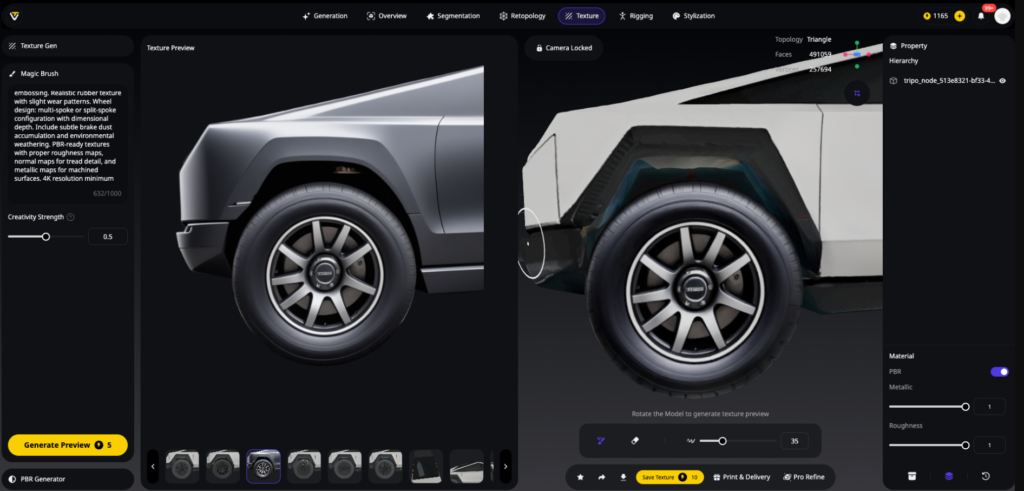
Magic Brush enables you to make various specific changes. Local refinements of surface textures can be done without impacting other materials. Only the selected regions can be modified in terms of the appearance of the material. Minor details can be added to improve realism and visual depth. Minor defects or unwanted surface areas can be refined through targeted adjustments. Artistic styles can also be adjusted to match creative objectives. Tripo 3D also provides flexible editing options that integrate with text to 3d model creation and refinement workflows.
Core Magic Brush Editing Benefits
Selective Precision
-
Targets only the intended areas of the model.
-
Avoids unnecessary changes to surrounding regions.
Visual Consistency
-
Preserves the quality of the surrounding texture.
-
Maintains consistent material appearance.
Workflow Speed
-
Improves the editing process.
-
Reduces repetitive manual work.
Creative Flexibility
-
Supports experimentation with greater flexibility.
-
Makes rapid visual adjustments.
Detail Enhancement
-
Smooths out minor surface features.
-
Enhances the overall appearance of the model.
Production Readiness
-
Supports professional asset development.
-
Enhances presentation quality.
Best Practices for Effective Localized Editing
Successful localized editing begins with clearly defined selection areas. Accurately identify the target area for more consistent edits. It is important to maintain texture continuity when making adjustments. Changes can be reviewed from various viewpoints to detect any potential problems. Artists should balance realism and creative goals while refining their models. Making smaller, gradual adjustments often produces more controlled and natural-looking results. Tripo 3D supports detailed analysis and optimization throughout the workflow.
Magic Brush and the Future of AI Texturing
AI texturing continues to evolve with increasingly advanced automation capabilities. Future systems may offer improved contextual awareness of textures and surface interactions. Localized editing tools may offer more accurate and detailed visual refinements as AI technologies continue to advance. Tripo 3D already demonstrates how contextual awareness can influence texture refinement. Emerging technologies may automate complex adjustments while preserving the creator’s artistic intent. Improved realism and more efficient workflows will likely shape future developments. These innovations may expand creative possibilities across numerous sectors.
Conclusion
Localized editing plays an important role in modern 3D production. Creators can make precise adjustments to improve content quality and workflow efficiency, depending on input quality and selected settings. Tripo 3D Magic Brush simplifies texture refinement by targeting selected texture regions. The feature provides flexible editing options that can be modified according to creative needs. As AI technologies evolve, precision editing will likely become increasingly useful. Tripo 3D demonstrates how AI-powered workflows can support efficient asset creation and help creators develop editable 3D assets for various creative applications.